|
|
If you have any unexpected problems with any of the following instructions, please contact:
Support@TitleSearcher.com
The TitleSearcher.com site utilizes standards-based HTML and should be viewable
via any 4.0 or greater browser. Internet Explorer, Netscape, Mozilla or almost
any other modern browser should be able to view all areas of our site equally.
Images of scanned documents are stored in TIFF format. TIFF is not a format
which can be viewed natively inside a web browser and a "helper" or
"plugin" application must be installed and configured to view them.
What is a TIFF Image?
A TIFF (Tag Image File Format) Image is a bitmap image, that means the pictures
are stored as a collection of color (or B&W) dots. The advantage of the
format is its size, it's really small for black & white pictures; it's easy
to print and you can view the image via systems running almost any operating
system.
What programs can read TIFF images?
Microsoft Windows: If you are using Windows
3.1, you can download LView Pro. This shareware program can manage
bitmap images in different formats (PCX, GIF, TIFF, etc). You should seriously
consider upgrading your computer if you use Windows 3.1 however, no modern web
application efforts are being made in it's direction.
On PCs with Windows 95/98/Me/2000/XP
and Internet Explorer 4.0 or above, there is an imaging program already
installed which can be used to view TIFF images. The viewer should launch within
Internet Explorer and load the image automatically. Internet
Explorer is available at no cost from Microsoft.
Starting with Internet Explorer version 5.5 and above Microsoft has disabled
the ability to use Plugins in favor of Active-X controls. A very good image
viewer for TIFF images which works IE5.5 and above is AlternaTIFF. Go to their
page at www.alternatiff.com
and either download the viewer as a .ZIP file to install locally or install
it straight from their web site. AlternaTIFF is free for use but does require
you to register with them. THIS IS THE PREFERRED METHOD
FOR ALL MICROSOFT WINDOWS/INTERNET EXPLORER USERS!
Macintosh: For Macs, there are shareware TIFF viewers which
can be downloaded and installed. We recommend GraphicConverter.
UNIX/Linux: All modern Unix/Linux systems come with TIFF viewing
and manipulation utilities. XView has been tested to work well.
Problems?
Apple Quicktime: Quicktime is an application which integrates with a
web browser to enable the viewing of audio/video clips in the Quicktime format.
It exists for Microsoft Windows as well as Apple Macintosh systems. On Windows
older versions of Quicktime took over the TIFF viewing functions even though
it was NOT capable of viewing multi-page TIFF G4 documents properly. In this
case you can view the first page of a document but NOT page forward to subsequent
pages of the document. On very old versions of Quicktime you can not view one
of our TIFF documents at all. You will be greeted with an icon which looks like
a broken piece of filmstrip. Solution: Upgrade to a newer version of
Quicktime or (preferably) install AlternaTIFF
to handle TIFF viewing functions.
Swiftview: Swiftview is an application capable of viewing various image
formats and is commonly installed to view plat images from some local government
web sites. Swiftview can view multiple image formats but shares the problem
Quicktime has. It can NOT properly view multi-page TIFF documents. During the
install of Swiftview a dialog window is presented asking what types of documents
you would like to associate with Swiftview. TIFF is on the list and should be
UNclicked before proceeding. Solution: Too late, you've already associated
TIFF images with Swiftview. Install (preferably) AlternaTIFF
or de-install and then re-install the default Windows imaging components to
re-associate TIFF with them. In some instances you may need to de-install Swiftview
and re-install making sure to not select to associate TIFF images with it.
Printing: Once you've viewed a document on your monitor successfully,
moving through the pages of the document or printing it is totally a function
of your computer and image viewing software. You could disconnect from the internet
at this point and still be able to print. No communications between your computer
or web browser and the TitleSearcher.com web site is performed. If you can view
a document properly on-screen but can not print it to paper properly then something
is wrong with your computer (generally wrong printer drivers, misconfigured
printer drivers, etc...). We can provide some basic guidance in resolving this
type of issue but ultimately this will be something for an IT Department or
computer service company to resolve.
I am using Internet Explorer 4.0 (4.01). I can't see any document
images when I click on the view image button. What's wrong?
This solution will work in Windows 95 and Windows 98.
Install Netscape version 4.5 and configure the Wang Image Viewer in Windows 95 or the Kodak Image Viewer in Windows 98.
Step 1 CLICK HERE Go to the Netscape Web Site where you can choose between a download of Netscape Navigator or Netscape
Communicator. Either one will work well. The rest of these instructions refer to Navigator.
Step 2 Select: Give me Netscape Navigator (English), the stand-alone browser for viewing web sites. (Win 95/98 or NT)
Step 3 Select: Option #3 - Download Free Software (U.S. and Canadian Customers).
Step 4 Select: Save to Disk and OK (Note: it is an 8 meg file. Normally you will want to save it in c:\temp). Depending on your internet connection this could take several minutes to several hours.
Step 5 Go to c:\temp, double click on "n32e405.exe" and accept all the default configuration options/parameters.
When it asks about a "readme file" select "No".
Step 6 Go to c:temp and delete "n32e405.exe". This will remove the install pack from your PC. (You don't need this any longer.)
Step 7 Go to your Windows desktop and double click Netscape Navigator. Go to http://www.titlesearcher.com login and select the document you wish to view.
Windows will present you with an "Open It" window (a list of applications to choose from). Scroll down and select wangimg. You should now be able to view the Document image.
If you cannot, there will be one final step for you to take. Double click on My Computer on your desktop. Select View/Options and click
on the File Types tab. Scroll down until you find "TIFF". Highlight TIFF and select the Edit button.
The screen should read as follows:
| No Image Available |
For Windows 95:
Description of Type: TIFF
I |
|
|
|
| ©1999-2026 Business Information Systems
|
Close Window 
Frequently Asked Questions
| Will I be able to access records immediately? |
| Yes, upon check-out you will have instant access to your subscribed counties or any counties in which Pay Per Copy funds are applied. |
|
| Can I unsubscribe or change my subscription? |
| Yes, call or email customer care to end a subscription, add or remove counties. |
|
| Why do different counties have different prices, do you have a price list? |
| Different counties have different price based mainly on how much data is present and the population of the county. |
|
| Can I sign up for both a monthly subscription and a Pay Per copy product? |
| Yes and many customers do. We have many customers that subscribe to counties and use Pay Per copy funds to access records from additional counties. If you do most of your work in a home county but need sparse data in additional counties, then it makes good sense to use the pay Per copy product in addition to a monthly subscription. |
|
| What is a TIFF? |
| A TIFF (Tag Image File Format) Image is a bitmap image that means the pictures are stored as a collection of color (or B&W) dots. The advantage of the format is its size, it's really small for black & white pictures; it's easy to print and you can view the image via systems running almost any operating system. |
|
| What programs can read TIFF images? |
| On PCs with Windows 2000/XP/Vista/Windows 7/Windows 8 and Internet Explorer 7.0 or above, there is an imaging program already installed which can be used to view TIFF images. The viewer should launch within Internet Explorer and load the image automatically. Internet Explorer is available at no cost from Microsoft. Starting with Internet Explorer version 7 .0 and above Microsoft has disabled the ability to use Plugins in favor of Active-X controls. A very good image viewer for TIFF images which works IE7.0 and above is AlternaTIFF. Go to their page at www.alternatiff.com and either download the viewer as a .ZIP file to install locally or install it straight from their web site. AlternaTIFF is free for use but does require you to register with them. THIS IS THE PREFERRED METHOD FOR ALL MICROSOFT WINDOWS/INTERNET EXPLORER USERS! Macintosh: For Macs, there are shareware TIFF viewers which can be downloaded and installed. We recommend GraphicConverter. UNIX/Linux: All modern Unix/Linux systems come with TIFF viewing and manipulation utilities. XView has been tested to work well. |
|
| How far back does the data go for your counties? |
| On the left hand navigation panel under "Available States" you can see a complete range of available information, broken down by states, and then counties. |
|
| How is a document printed? |
| Once a document is viewed on the monitor, moving through the pages of and printing the document is totally a function of your computer and image viewing software. You could disconnect from the internet at this point and still be able to print. No communications between your computer, web browser, and the web site are performed. If you can view a document properly on-screen but can not print it to paper, then something is wrong with your computer (misconfigured printer drivers, wrong drivers installed, etc.) We can provide some basic guidance in resolving this type of issue, but ultimately this will be something for an IT department or computer service company to resolve |
|
| What is a cross reference and how do I use it? |
| Cross references ( sometimes called refer backs ) are entries made on a given index that refer to a previous document. This allows you to see "chain of title" from one document to the next. |
|
| Why is the document trying to load in CPC Lite? |
| If you receive the message "Unable to load page: Unknown image format" and your PC has a CPC Lite viewer installed, the TIFF file type is associated with the CPC viewer instead of Windows Picture and Fax Viewer, Microsoft Office Document Imaging Viewer. |
|
| Can I print a single page of a multi-page file that I have downloaded? |
| The TIFF viewer you have installed on your computer controls the printing functions available to you. Most TIFF viewers will allow printing all pages, one page, or a page range. |
|
| I see the word "Not Indexed", what does that mean? |
| Not Indexed signifies that a given instrument has not been verified and certified as completed. Once instruments are certfied, the property description and Grantor/Grantee will appear. |
|
| Can I do a date range search for a given name? |
| Yes, you can key in the name you want to search, then key in a beginning and ending date range. If you enter a beginning date only, the system will search from that point forward. Likewise, if you key an ending date only, the system will search from 2000 until the date you specify. |
|
| QuickTime - Problems Viewing Images? Can't Print? |
| The QuickTime player will try to open the .TIF file which it can't display properly. You should use another image viewer, such as alternatiff) or the default microsoft image viewer. Here are the instructions on how to disable QuickTime from opening .TIF files: 1. Click on Start then on Settings and the Control Panel 2. Double-click on QuickTime (not on QuickTime 32 if you have older version) 3. In the window that opens click on "Browser Plug-in" in the drop-down menu. Or, if you have Quicktime 7 or greater, click the tab that is labelled, "Browser", then proceed to the next step. 4. Click on MIME Settings� button 5. Click on the + sign in front of Images to expand the selection 6. Uncheck the box for TIFF image file 7. Click on OK 8. Close the QuickTime Settings window 9. Restart all instances of your web browser. (VERY IMPORTANT) |
|

Close Window
Close Window
TitleSearcher Price List:
Each county is grouped into tiers based on the population, years of data, and
etc. Each county has a Primary and Additional cost. If one county is selected
then the Primary cost is the monthly subscription. In the case of multiple
counties the first county uses the Primary cost and each additional county
applies the Additional cost.
| Arkansas / Monthly Primary / Additional |
Level 1 / Monthly Primary / Additional |
Level 2 / Monthly Primary / Additional |
Level 3 / Monthly Primary / Additional |
Virginia / Monthly Primary / Additional |
Arkansas
ASHLEY, AR 70.00 / 70.00
Arkansas
BAXTER, AR 70.00 / 70.00
Arkansas
BRADLEY, AR 70.00 / 70.00
Arkansas
CHICOT, AR 70.00 / 70.00
Arkansas
CLEVELAND, AR 70.00 / 70.00
Arkansas
DALLAS, AR 70.00 / 70.00
Arkansas
FULTON, AR 70.00 / 70.00
Arkansas
GREENE, AR 70.00 / 70.00
Arkansas
INDEPENDENCE, AR 70.00 / 70.00
Arkansas
JOHNSON, AR 70.00 / 70.00
Arkansas
MADISON, AR 70.00 / 70.00
Arkansas
SEARCY, AR 70.00 / 70.00
Arkansas
SHARP, AR 70.00 / 70.00
Arkansas
STONE, AR 70.00 / 70.00
Arkansas
VANBUREN, AR 70.00 / 70.00
Arkansas
WHITE, AR 70.00 / 70.00
Arkansas
CLEBURNE, AR 50.00 / 50.00
Arkansas
DESHA, AR 50.00 / 50.00
|
Tennessee
SHELBY, TN 50.00 / 25.00
Tennessee
SULLIVAN, TN 50.00 / 25.00
Tennessee
WASHINGTON, TN 50.00 / 25.00
Tennessee
WILLIAMSON, TN 50.00 / 25.00
|
Kentucky
BRECKINRIDGE, KY 45.00 / 20.00
Kentucky
HENDERSON, KY 45.00 / 20.00
Kentucky
HOPKINS, KY 45.00 / 20.00
Kentucky
JACKSON, KY 45.00 / 20.00
North Carolina
FORSYTH, NC 45.00 / 20.00
North Carolina
GUILFORD, NC 45.00 / 20.00
North Carolina
MCDOWELL, NC 45.00 / 20.00
South Carolina
AIKEN, SC 45.00 / 20.00
South Carolina
BERKELEY, SC 45.00 / 20.00
South Carolina
CALHOUN, SC 45.00 / 20.00
South Carolina
DORCHESTER, SC 45.00 / 20.00
South Carolina
LANCASTER, SC 45.00 / 20.00
South Carolina
LAURENS, SC 45.00 / 20.00
South Carolina
SPARTANBURG, SC 45.00 / 20.00
Tennessee
ANDERSON, TN 45.00 / 20.00
Tennessee
BEDFORD, TN 45.00 / 20.00
Tennessee
BRADLEY, TN 45.00 / 20.00
Tennessee
CARTER, TN 45.00 / 20.00
Tennessee
CLAIBORNE, TN 45.00 / 20.00
Tennessee
COFFEE, TN 45.00 / 20.00
Tennessee
CUMBERLAND, TN 45.00 / 20.00
Tennessee
DECATUR, TN 45.00 / 20.00
Tennessee
FAYETTE, TN 45.00 / 20.00
Tennessee
FENTRESS, TN 45.00 / 20.00
Tennessee
FRANKLIN, TN 45.00 / 20.00
Tennessee
GILES, TN 45.00 / 20.00
Tennessee
GREENE, TN 45.00 / 20.00
Tennessee
HAMBLEN, TN 45.00 / 20.00
Tennessee
HICKMAN, TN 45.00 / 20.00
Tennessee
HUMPHREYS, TN 45.00 / 20.00
Tennessee
LAWRENCE, TN 45.00 / 20.00
Tennessee
MADISON, TN 45.00 / 20.00
Tennessee
MARION, TN 45.00 / 20.00
Tennessee
MAURY, TN 45.00 / 20.00
Tennessee
MONROE, TN 45.00 / 20.00
Tennessee
SEVIER, TN 45.00 / 20.00
Tennessee
UNICOI, TN 45.00 / 20.00
Tennessee
VANBUREN, TN 45.00 / 20.00
|
North Carolina
AVERY, NC 40.00 / 15.00
North Carolina
CLAY, NC 40.00 / 15.00
North Carolina
COLUMBUS, NC 40.00 / 15.00
North Carolina
HAYWOOD, NC 40.00 / 15.00
North Carolina
MACON, NC 40.00 / 15.00
North Carolina
MITCHELL, NC 40.00 / 15.00
North Carolina
ROBESON, NC 40.00 / 15.00
North Carolina
TRANSYLVANIA, NC 40.00 / 15.00
North Carolina
Yancey, NC 40.00 / 15.00
Tennessee
BLEDSOE, TN 40.00 / 15.00
Tennessee
CAMPBELL, TN 40.00 / 15.00
Tennessee
CLAY, TN 40.00 / 15.00
Tennessee
COCKE, TN 40.00 / 15.00
Tennessee
GRAINGER, TN 40.00 / 15.00
Tennessee
HAWKINS, TN 40.00 / 15.00
Tennessee
JACKSON, TN 40.00 / 15.00
Tennessee
JEFFERSON, TN 40.00 / 15.00
Tennessee
JOHNSON, TN 40.00 / 15.00
Tennessee
LINCOLN, TN 40.00 / 15.00
Tennessee
LOUDON, TN 40.00 / 15.00
Tennessee
MACON, TN 40.00 / 15.00
Tennessee
MOORE, TN 40.00 / 15.00
Tennessee
PERRY, TN 40.00 / 15.00
Tennessee
PICKETT, TN 40.00 / 15.00
Tennessee
POLK, TN 40.00 / 15.00
Tennessee
RHEA, TN 40.00 / 15.00
Tennessee
ROANE, TN 40.00 / 15.00
Tennessee
SCOTT, TN 40.00 / 15.00
Tennessee
SEQUATCHIE, TN 40.00 / 15.00
Tennessee
SMITH, TN 40.00 / 15.00
Tennessee
UNION, TN 40.00 / 15.00
Tennessee
WEAKLEY, TN 40.00 / 15.00
Tennessee
WHITE, TN 40.00 / 15.00
|
Virginia
SCOTT, VA 40.00 / 0.00
|
Pay As You Go Services
You can start a pay as you go account with an initial deposit of $5.00 by using a credit card.
Document images that are retrieved will be $2.00 each. All counties will be accessible with this search option.
The search by name option will require a .25 cent charge to open each name retrieved.
Pay as You Go Expiration:
You must replenish your account with funds of at least five dollars ($5) within 24 months of the activation date or you will lose your unused funds and your account will be deactivated. Adding funds to your account before your balance expires will extend the expiration date.
Arkansas Pricing
* Follows different pricing model *
Arkansas County
Document images that are retrieved will be $3.00 each.
The search by name option will require a 0.25 cent charge to open each name retrieved.
Baxter County
Document images that are retrieved will be $3.00 each.
The search by name option will require a 0.25 cent charge to open each name retrieved.
Bradley County
Document images that are retrieved will be $3.00 each.
The search by name option will require a 0.25 cent charge to open each name retrieved.
Dallas County
Document images that are retrieved will be $3.00 each.
The search by name option will require a 0.25 cent charge to open each name retrieved.
Independence County
Document images that are retrieved will be $3.00 each.
The search by name option will require a 0.25 cent charge to open each name retrieved.
Madison County
Document images that are retrieved will be $3.00 each.
The search by name option will require a 0.25 cent charge to open each name retrieved.
Searcy County
Document images that are retrieved will be $3.00 each.
The search by name option will require a 0.25 cent charge to open each name retrieved.
Stone County
Document images that are retrieved will be $3.00 each.
The search by name option will require a 0.25 cent charge to open each name retrieved.
VanBuren County
Document images that are retrieved will be $4.00 each.
The search by name option will require a 0.25 cent charge to open each name retrieved.
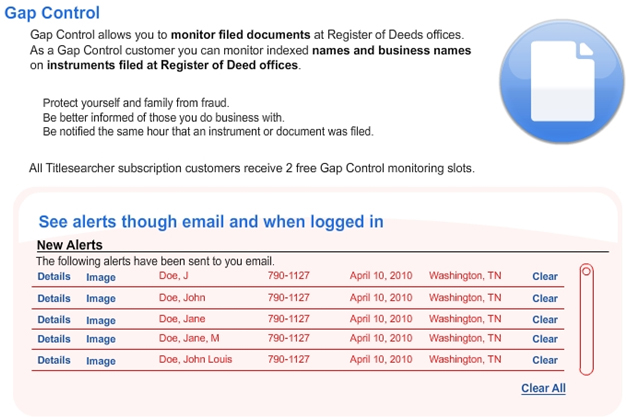
As a Gap Control customer, you can monitor recorded documents in any of the
counties available on TitleSearcher. Monitors can be set by name, company name,
instrument number or book and page number.
| Plan Name | Monitor's Allowed | Cost |
|---|
| Plan 10 | Monitor 10 items | 4.95 per month |
| Plan 25 | Monitor 25 items | 8.95 per month |
| Plan 50 | Monitor 50 items | 12.95 per month |
| Plan 100 | Monitor 100 items | 17.95 per month |
| Plan 150 | Monitor 150 items | 21.95 per month |
| Plan 200 | Monitor 200 items | 24.95 per month |
| Plan 300 | Monitor 300 items | 29.95 per month |
|




 Home
Home